Stats
Actions
Available In
Tags

An ambient heads-up display for running many Claude Code sessions at once. Each session gets a persistent, distinctly-colored badge showing its live state (working / done / awaiting your input) and a Claude-generated name of what it's working on. When a background session needs you, an always-on-top popup pushes it to you (native desktop notification off-Windows); click a badge to jump to that session's window, and the focused window gets a matching color accent. Badges/tint/popup are Windows; notifications are cross-platform.
Based on adoption, maintenance, documentation, and repository signals. Not a security audit or endorsement.
Executes bash commands
Hook triggers when Bash tool is used
Modifies files
Hook triggers on file write and edit operations
An ambient heads-up display for running many Claude Code sessions at once.



When you've got several Claude Code chats going in parallel, you lose track of which one is which, which is still working, and — the big one — which one is blocked waiting for you. This is a lightweight, hook-based HUD that answers that at a glance, layered over the sessions you already run. No new app, no orchestrator, no worktree management: it just watches Claude Code's hooks and draws a small always-on-top UI.
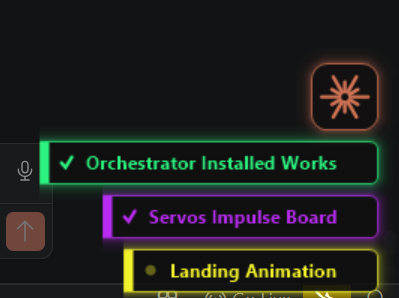
A real Claude Code plugin, distributed from this repo's marketplace. The badges, window tint, and button are Windows-only (WPF/Win32); the desktop notification that tells you a session needs you works on macOS, Linux, and Windows.
| Feature | What it does |
|---|---|
| Per-chat badge | A small persistent chip, bottom-right, one per chat — in that chat's own stable color (remembered durably, so the same chat keeps its color across despawn/respawn; it only changes to break a clash with another live chat). It stays put while the chat's window is open (it won't vanish from disuse), the tab for the window you're currently in stays lit, and focusing a chat's window surfaces its tab if it wasn't already showing. Sits just above VS Code's status bar so it doesn't cover the bottom-bar buttons. |
| Live state | The badge shows ✓ done, a breathing dot = working, or a blinking ring = awaiting your input (permission / idle). This is the "which session needs me?" signal. |
| Smart name | The badge is labelled with a 1–3 word summary of what the chat is working on (via Claude), and it re-checks on every prompt — keeping the name while it still fits and updating it when the chat's focus shifts, so names don't go stale. |
| Jump / stow (drawer) | Left-click a badge to jump to that chat's VS Code window. Right-click stows it — the tab slides into a drawer at the right edge, leaving just its colored edge showing; it's never destroyed. Click the stowed edge (either button) to slide it back out. Drag a tab up or down to reorder the stack — the order sticks. The drawer state and order are remembered across restarts. Hover a badge (or the button) for a hint on what the clicks do. |
| Window color-coding | The focused chat's VS Code window gets a matching color accent along its top edge. |
| New-window button | An always-on-top + button; click it to open the current chat's folder in a new VS Code window — files right there, so each session is its own window and you can see files across all of them. |
| On/off toggle | Turn the whole HUD off and back on from a VS Code status-bar button — a companion extension in vscode-extension/ (green = on, dim = off). When off, the badges/tint/button/cards all disappear; flip it back on and they return. (Under the hood it's a enabled flag in the config, so you can also toggle it by hand or from your own script.) |
| "Working on" cards | A top-right card per chat, colored to that chat, showing its name and a short summary of what it's doing (e.g. "fixing sim landing crash", "adding servos to schematic") — it stays up while the chat works and turns to a brief done when it finishes. Hover for a hint; click to jump to that chat. |
| "Needs you" popup | When a background session goes awaiting your input, an always-on-top card (colored to match that session) slides in top-right — left-click to jump to the chat, right-click to dismiss, hover to keep it up. It's one we draw ourselves, so Windows notification settings / Focus Assist can't suppress it. Off-Windows it falls back to a native desktop toast. |
| Waiting-for-you alert | When a background chat finishes and is waiting on your reply, a persistent top-right card tells you — so a chat that's done in another window doesn't sit there unnoticed. Click to jump; it clears once you reply. (The chat you're actively looking at just gets a quiet "done".) |
Badges stack, so several chats form a tidy dock; the button rides on top of the stack.
Everything is driven by Claude Code hooks → one dispatcher (scripts/hal_badge.py):
Own this plugin?
Verify ownership to unlock analytics, metadata editing, and a verified badge. GitHub access is read-only (username + org membership).
Sign in to claimOwn this plugin?
Verify ownership to unlock analytics, metadata editing, and a verified badge. GitHub access is read-only (username + org membership).
Sign in to claimnpx claudepluginhub tchurkin/claude-code-session-hud --plugin claude-session-hudMemory compression system for Claude Code - persist context across sessions
 thedotmack
45% cost reduction measured. Cache expiry prevention, SubTask auto-delegation, zero-cost context restoration, real-time cost dashboard. The only Claude Code plugin built from CC source analysis.
 ww-w-ai
Ultra-compressed communication mode. Cuts 65% of output tokens (measured) while keeping full technical accuracy by speaking like a caveman.
 JuliusBrussee
Multi-model consensus engine integrating OpenAI Codex CLI, Gemini CLI, and Claude CLI for collaborative code review and problem-solving.
 xrf9268-hue
Unified capability management center for Skills, Agents, and Commands.
 guanyang
The most comprehensive Claude Code plugin — 14+ agents, 56+ skills, 33+ commands, and production-ready hooks for TDD, security scanning, code review, and continuous learning
 affaan-m
'%20stop-opacity%3D'0.16'%2F%3E%3Cstop%20offset%3D'1'%20stop-color%3D'rgb(200%2C90%2C60)'%20stop-opacity%3D'0.03'%2F%3E%3C%2FlinearGradient%3E%3C%2Fdefs%3E%3Crect%20width%3D'320'%20height%3D'200'%20fill%3D'url(%23g)'%2F%3E%3Ccircle%20cx%3D'250'%20cy%3D'56'%20r%3D'92'%20fill%3D'rgb(200%2C90%2C60)'%20fill-opacity%3D'0.06'%2F%3E%3Ccircle%20cx%3D'64'%20cy%3D'172'%20r%3D'58'%20fill%3D'rgb(200%2C90%2C60)'%20fill-opacity%3D'0.05'%2F%3E%3C%2Fsvg%3E)