Claude Code iTerm2 Tab Status


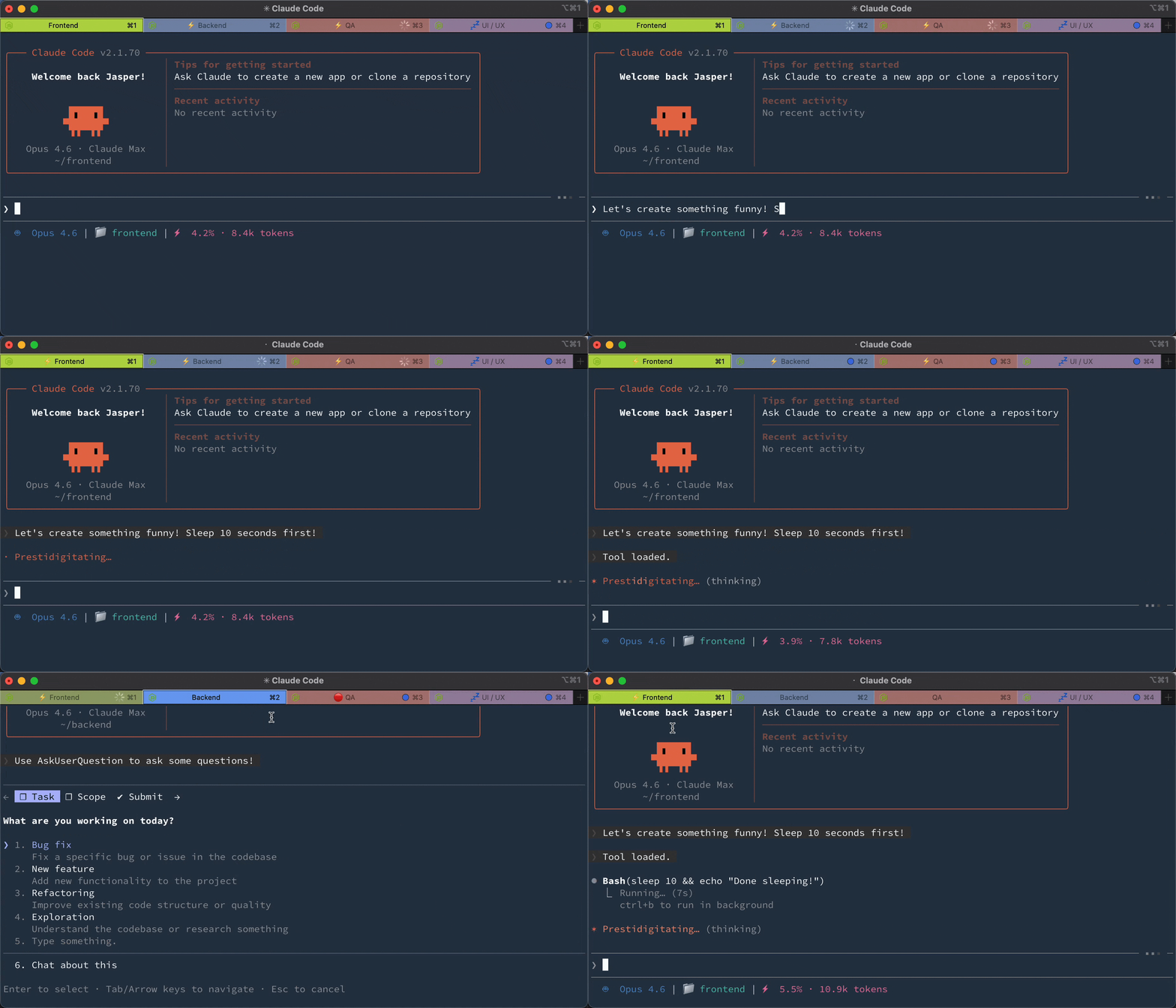
See what every Claude Code session is doing. Each iTerm2 tab shows a status prefix. ⚡ running, 💤 idle, or 🔴 needs attention (with flashing).
Installation
Claude Code (via Plugin Marketplace)
In Claude Code, register the marketplace first:
/plugin marketplace add JasperSui/jaspersui-marketplace
Then install the plugin from this marketplace:
/plugin install iterm2-tab-status@jaspersui-marketplace
On first session start, the plugin automatically:
- Creates an iTerm2 Python runtime (if not already installed)
- Deploys the tab-status adapter and COS overlay scripts to iTerm2 AutoLaunch
- Deploys COS readback and safe-dispatch scripts to the iTerm2 Scripts menu
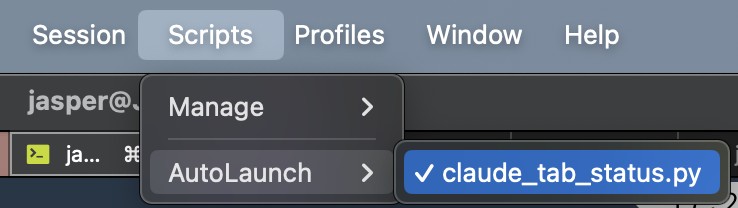
After the first session, restart iTerm2 (or toggle Scripts → AutoLaunch for claude_tab_status.py and cos_iterm_overlay.py).
Manual Setup
If auto-bootstrap didn't work, run:
/iterm2-tab-status:setup
Uninstall
Run in Claude Code:
/iterm2-tab-status:uninstall
Then remove the plugin:
claude plugin uninstall iterm2-tab-status
Three states
| State | Prefix | Tab Color | Badge | Dismiss on Focus |
|---|
| Running — Claude is processing | ⚡ | No change | No | No |
| Idle — Claude finished | 💤 | No change | No | No |
| Attention — needs permission | 🔴 | Flashes orange | Yes | Yes |
Lifecycle: User submits → ⚡ → Claude finishes → 💤 → User submits → ⚡ → Claude needs permission → 🔴 flash! → User focuses → cleared
Your original tab color, title, and badge are saved and restored.
How it works
Claude Code hooks → JSON signal file → iTerm2 adapter → tab status
No screen scraping. Claude Code's official hooks API writes a signal file on every event. The unified hook handles both UserPromptSubmit (→ running) and Notification (→ idle/attention). The iTerm2 adapter polls for signal files and sets the matching tab's prefix, color, and badge by TTY. Only the attention state flashes and shows a badge — running and idle are informational prefixes that persist.
Configuration
The easiest way to configure is with the slash command in Claude Code:
/iterm2-tab-status:config
This opens an interactive prompt to change flash color, prefixes, badge, notifications, and more.
Config file
Settings are stored in ~/.config/claude-tab-status/config.json. Example with all keys and their defaults:
{
  "dir": "~/.cache/claude-tab-status",
  "color_r": 255,
  "color_g": 140,
  "color_b": 0,
  "interval": 0.6,
  "prefix_running": "⚡ ",
  "prefix_idle": "💤 ",
  "prefix_attention": "🔴 ",
  "display_target": "title",
  "subtitle_activity_source": "off",
  "badge": "⚠️ Needs input",
  "badge_enabled": true,
  "notify": false,
  "sound": ""
}
The config file is hot-reloaded — changes take effect within ~1 second, no restart needed.
Priority order
Settings are resolved in this order (highest wins):
- Environment variable (e.g.
export CLAUDE_ITERM2_TAB_STATUS_COLOR_R=255)
- Config file (
~/.config/claude-tab-status/config.json)
- Built-in defaults
Environment variables are useful for CI or per-machine overrides without touching the config file.
Display target
By default, status is shown as a tab title prefix.
Set "display_target": "subtitle" to leave the main tab title alone and write status to the iTerm2 user variable user.claudeStatus. In iTerm2, open Settings > Profiles > General and set Subtitle to:
\(user.claudeStatus)
Use "display_target": "both" to update both the title prefix and subtitle variable.
Set "subtitle_activity_source": "prompt" to append a compact, sanitized activity snippet
to the subtitle, such as ⚡ Run tests. The default is "off", which keeps subtitle
output status-only and does not persist prompt text in signal files. Prompt snippets are
opt-in because Claude Code's UserPromptSubmit hook payload includes the submitted
prompt.
Claude Code can also set terminal titles. If you want iTerm2 to control the main title while this plugin updates the subtitle, add this to your shell startup file:
export CLAUDE_CODE_DISABLE_TERMINAL_TITLE=1
Environment variable reference
 JuliusBrussee
 xrf9268-hue
'%20stop-opacity%3D'0.16'%2F%3E%3Cstop%20offset%3D'1'%20stop-color%3D'rgb(200%2C90%2C60)'%20stop-opacity%3D'0.03'%2F%3E%3C%2FlinearGradient%3E%3C%2Fdefs%3E%3Crect%20width%3D'320'%20height%3D'200'%20fill%3D'url(%23g)'%2F%3E%3Ccircle%20cx%3D'250'%20cy%3D'56'%20r%3D'92'%20fill%3D'rgb(200%2C90%2C60)'%20fill-opacity%3D'0.06'%2F%3E%3Ccircle%20cx%3D'64'%20cy%3D'172'%20r%3D'58'%20fill%3D'rgb(200%2C90%2C60)'%20fill-opacity%3D'0.05'%2F%3E%3C%2Fsvg%3E)