
Golem Code
If we're going to summon the beast we may as well give it a face.
Summon Claude Code as an embodied avatar that follows you around your computer so you can always keep tabs on your running Claude Code instances. golem-code renders a procedurally generated agent avater in a floating native window that reacts in real-time to your coding agent's activity — tool calls, subagent spawns, permission requests, and more.
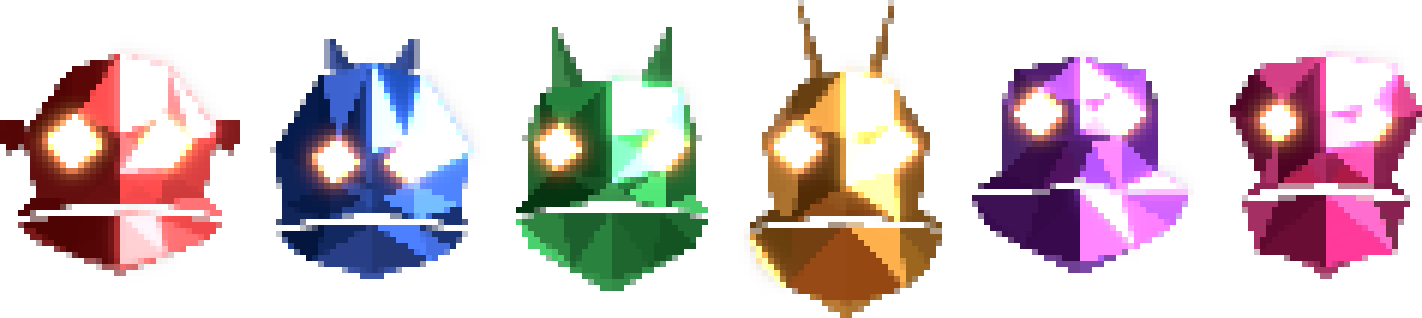
Requirements
- macOS (the native overlay window uses macOS-specific APIs)
- Claude Code installed and configured
Installation
golem-code works as a combination of a wrapper CLI around claude code, and a claude code plugin.
1. First, install the CLI:
curl -fsSL https://raw.githubusercontent.com/chrisjpatty/golem-code/main/install.sh | sh
This downloads the latest summon binary for your Mac and installs it to /usr/local/bin. Set SUMMON_INSTALL_DIR to install elsewhere:
SUMMON_INSTALL_DIR=~/.local/bin curl -fsSL https://raw.githubusercontent.com/chrisjpatty/golem-code/main/install.sh | sh
2. Install the Claude Code plugin
After installing the binary, open Claude Code and install the plugin:
/plugin marketplace add chrisjpatty/golem-code
/plugin install golem-code
This registers the hooks that let Summon see what Claude Code is doing. You only need to do this once.
3. Close claude code and start golem-code
summon
Updating
summon --update
This downloads the latest release and replaces the current binary in-place.
Usage
summon is a drop-in wrapper for Claude Code. Use it exactly as you would use claude:
# Start a new session
summon

# Start with an initial prompt
summon "Fix the failing tests in src/utils"

# Continue the most recent conversation
summon -c

# Resume a specific session
summon -r <session-id>

# Work in a different directory
summon --cwd ~/my-project

# Open the face in a browser tab instead of the native overlay
summon --browser

# Forward flags to Claude Code (everything after -- is passed through)
summon -- --model sonnet
CLI reference
summon [options] [prompt]

Options:
  -p, --prompt <text>         Initial prompt to send to Claude Code
  -c, --continue              Continue the most recent conversation
  -r, --resume <session-id>   Resume a specific session
  --cwd <dir>                 Working directory (default: current directory)
  --port <port>               Server port (default: 6661)
  --browser                   Open face in browser instead of native overlay
  --no-open                   Don't auto-open the browser/overlay
  --update                    Update summon to the latest version
  -v, --version               Show version
  -h, --help                  Show help
  --                          Pass remaining arguments to Claude Code
How it works
Summon sits between you and Claude Code:
- Spawns Claude Code in a PTY (pseudo-terminal), so your terminal experience is unchanged
- Runs an HTTP/WebSocket server that receives hook events from a bundled Claude Code plugin
- Launches a native overlay window (Tauri/Rust) that renders the 3D face via a WebGL frontend
- Translates hook events into facial expressions
Peer discovery
When you launch a second summon instance, it checks ~/.golem/instances/ for a running primary. If one is found, the new instance connects as a peer over WebSocket and forwards its events — the primary's overlay renders both faces side by side. Each peer gets assigned a unique color from a 12-color palette.
Browser mode
If you don't want the native overlay or are on a non-macOS platform, use --browser to open the face in a browser tab instead:
summon --browser
The 3D face renders identically in the browser — you just lose the floating always-on-top overlay behavior.
Troubleshooting
The overlay doesn't appear
- Check that port 6661 is available (or use
--port to pick another)
- Try
summon --browser to verify the face renders in a browser
Faces aren't reacting to agent activity
- Make sure the Claude Code plugin is installed: run
/plugin install golem-code inside Claude Code
- Check that Summon's server is running — look for
[summon] Golem server: http://localhost:6661 in your terminal output
Multiple instances aren't connecting
- Each instance registers in
~/.golem/instances/. Stale entries from crashed sessions are cleaned up automatically, but you can manually clear that directory if needed.
Building from source
Requirements

 1270011
 Innestic
 mradovic95
 chuilishi
 tombelieber
 st0012
'%20stop-opacity%3D'0.16'%2F%3E%3Cstop%20offset%3D'1'%20stop-color%3D'rgb(200%2C90%2C60)'%20stop-opacity%3D'0.03'%2F%3E%3C%2FlinearGradient%3E%3C%2Fdefs%3E%3Crect%20width%3D'320'%20height%3D'200'%20fill%3D'url(%23g)'%2F%3E%3Ccircle%20cx%3D'250'%20cy%3D'56'%20r%3D'92'%20fill%3D'rgb(200%2C90%2C60)'%20fill-opacity%3D'0.06'%2F%3E%3Ccircle%20cx%3D'64'%20cy%3D'172'%20r%3D'58'%20fill%3D'rgb(200%2C90%2C60)'%20fill-opacity%3D'0.05'%2F%3E%3C%2Fsvg%3E)