Claude Panel
Claude Code gets its own screen — it decides what you need to see


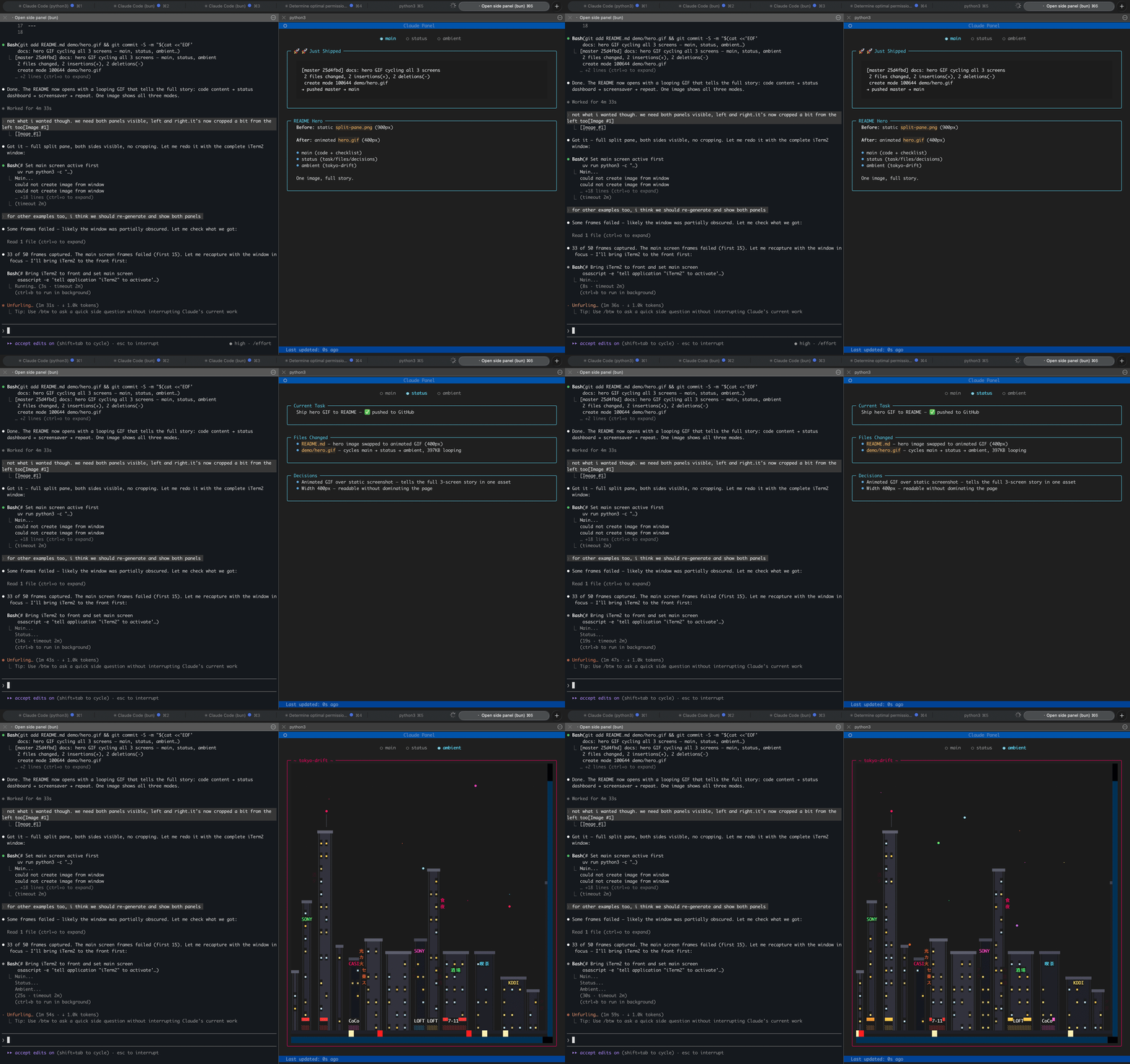
Main screen (Claude's content) → Status dashboard → Ambient screensaver
Claude Panel is a persistent TUI that sits next to your Claude Code terminal. Claude autonomously updates the panel with whatever it thinks matters — code it just wrote, a diagram, next steps, or a mood emoji. A structured dashboard tracks the current task, files changed, and key decisions, refreshing after every response. And when you're between tasks, ambient terminal screensavers keep the vibe going.
Three Screens
| Screen | Managed by | What it shows |
|---|
| Main | Claude | Whatever Claude thinks is useful right now — code snippets, explanations, diagrams, progress checklists, mood emoji. Full creative control. |
| Status | Claude (AI curator) | Structured dashboard: current task, files changed, decisions made. Auto-updates after every response. |
| Ambient | You | Terminal screensaver of your choice. Plays when nothing else needs your attention. |
Claude manages the content, you manage the screensaver. The main and status screens update automatically — Claude reads the conversation, decides what's worth pinning on screen, and writes it. No manual commands needed.
Ambient Screensavers
Twelve built-in terminal animations ship with the package. Navigate with arrow keys or panel(show="ambient").
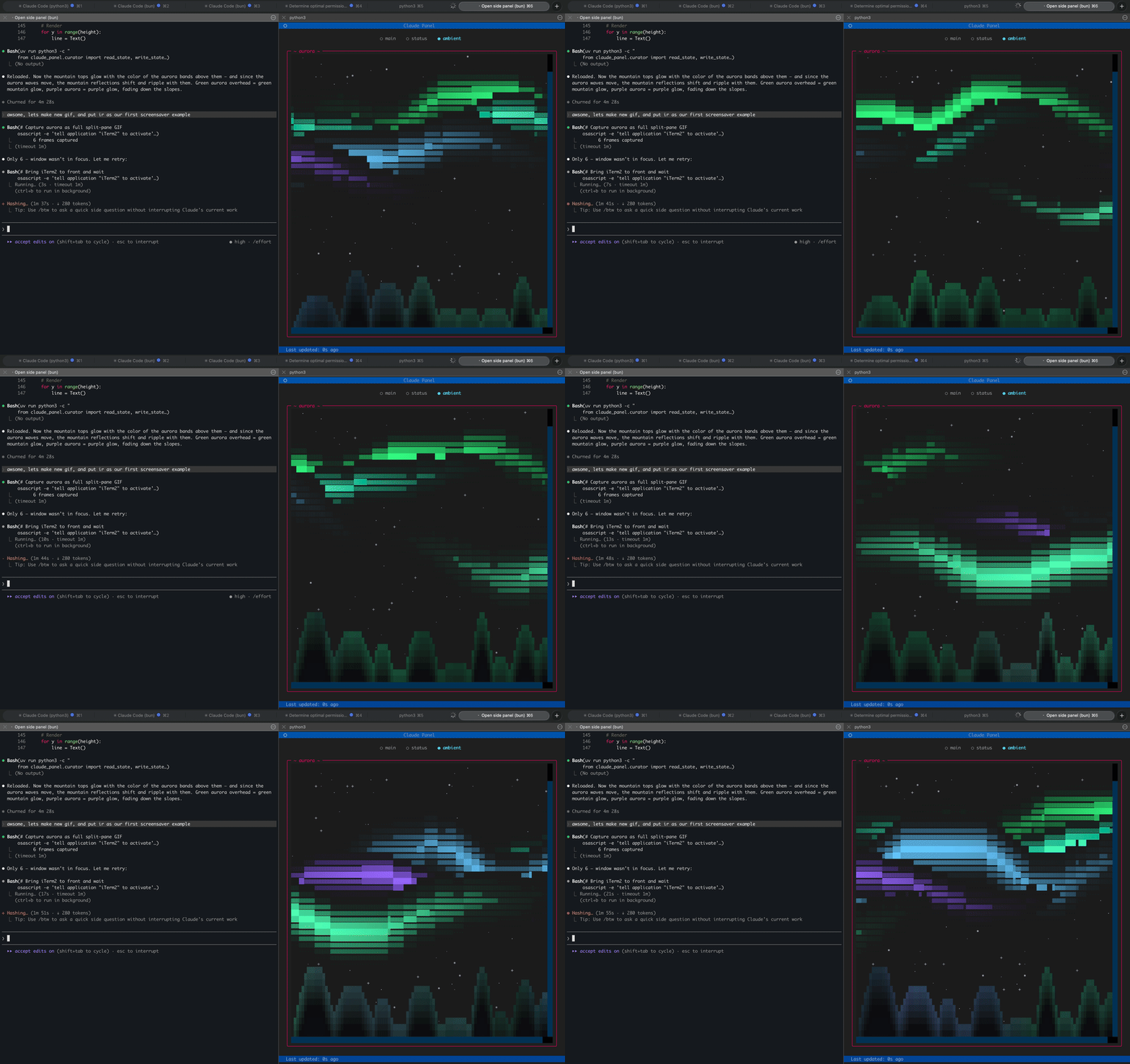
aurora
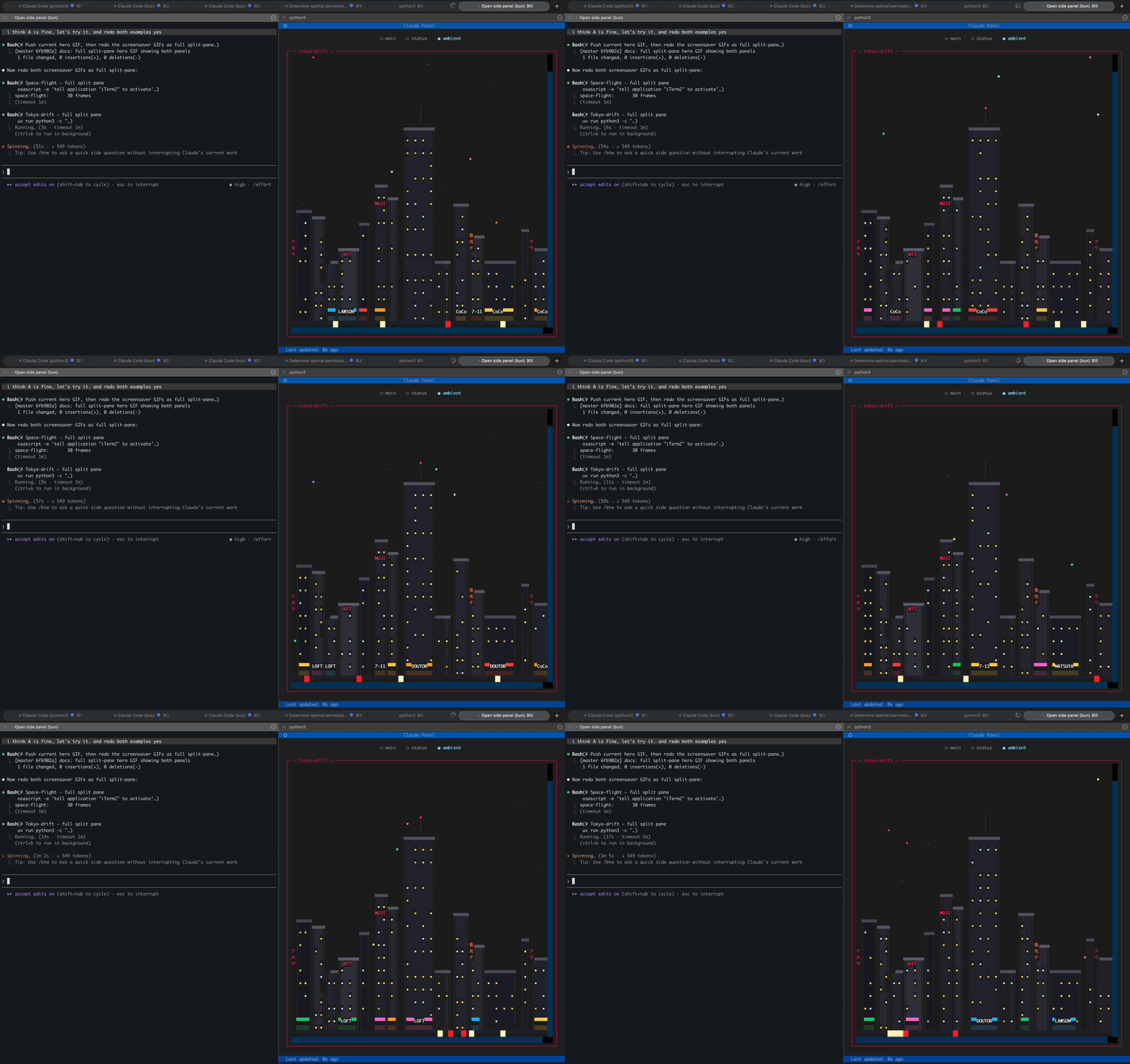
tokyo-drift
Also available: neon-dreams | neon-street | space-flight | rain-city | city-lights | matrix | noir | banquet | dvd-bounce | synthwave
All screensavers are bundled with the package — they work out of the box on a fresh install.
Custom screensavers
Drop a .py file in ~/.claude-panel/screensavers/ and it becomes available immediately. User screensavers override bundled ones of the same name, so you can customize any built-in screensaver without touching the package.
# List available screensavers
panel(screensaver="rain-city")

# Or ask Claude to create one
# "make me a screensaver with falling snow"
Screensavers are plain Python scripts that draw to a Rich canvas. Creating your own takes ~10 lines.
Install
# As a Claude Code plugin (recommended)
claude plugin marketplace add alex-radaev/claude-panel
claude plugin install claude-panel@claude-panel
Manual installation
git clone https://github.com/alex-radaev/claude-panel
cd claude-panel
uv sync
Then add to your MCP config (~/.claude/settings.json or .mcp.json).
Usage
The panel opens automatically when you start a Claude Code session — an iTerm2 (macOS) or Windows Terminal (WSL) split pane launches with the viewer. No manual commands needed.
To disable auto-open, set "auto_open": false in ~/.claude-panel/config.json.
You can also open it manually:
# From Claude Code
panel_open()

# Manual
uv run claude-panel
Once running, Claude takes over. The main and status screens update on their own. You can switch views:
panel(show="ambient")              # switch to screensaver
panel(show="main")                 # switch to main canvas
panel(show="status")               # switch to status dashboard
panel(screensaver="tokyo-drift")   # change screensaver
| Key | Action |
|---|
q | Quit viewer |
<- -> | Cycle screens |
c | Clear panel |
iTerm2 tip: The panel pane may look washed out because iTerm2 dims inactive split panes by default. To fix: Settings > Appearance > Dimming and uncheck Dim inactive split panes.
How It Works

 alex-radaev
 thedotmack
 uppinote20
'%20stop-opacity%3D'0.16'%2F%3E%3Cstop%20offset%3D'1'%20stop-color%3D'rgb(200%2C90%2C60)'%20stop-opacity%3D'0.03'%2F%3E%3C%2FlinearGradient%3E%3C%2Fdefs%3E%3Crect%20width%3D'320'%20height%3D'200'%20fill%3D'url(%23g)'%2F%3E%3Ccircle%20cx%3D'250'%20cy%3D'56'%20r%3D'92'%20fill%3D'rgb(200%2C90%2C60)'%20fill-opacity%3D'0.06'%2F%3E%3Ccircle%20cx%3D'64'%20cy%3D'172'%20r%3D'58'%20fill%3D'rgb(200%2C90%2C60)'%20fill-opacity%3D'0.05'%2F%3E%3C%2Fsvg%3E)