Feishu Channel for Claude Code
Connect a Feishu (飞书) bot to your Claude Code with an MCP server.
The MCP server logs into Feishu as a bot and provides tools to Claude to reply,
react, or edit messages. When you message the bot, the server forwards the
message to your Claude Code session.
📖 中文文档
Prerequisites
- Bun — the MCP server runs on Bun. Install with
curl -fsSL https://bun.sh/install | bash.
Quick Setup
Default pairing flow for a single-user DM bot. See ACCESS.md
for groups and multi-user setups.
1. Create a Feishu bot
Go to Feishu Open Platform → Create Custom
App (创建自建应用). Give it a name (e.g. "ClaudeCode") and description.
1a. Copy credentials
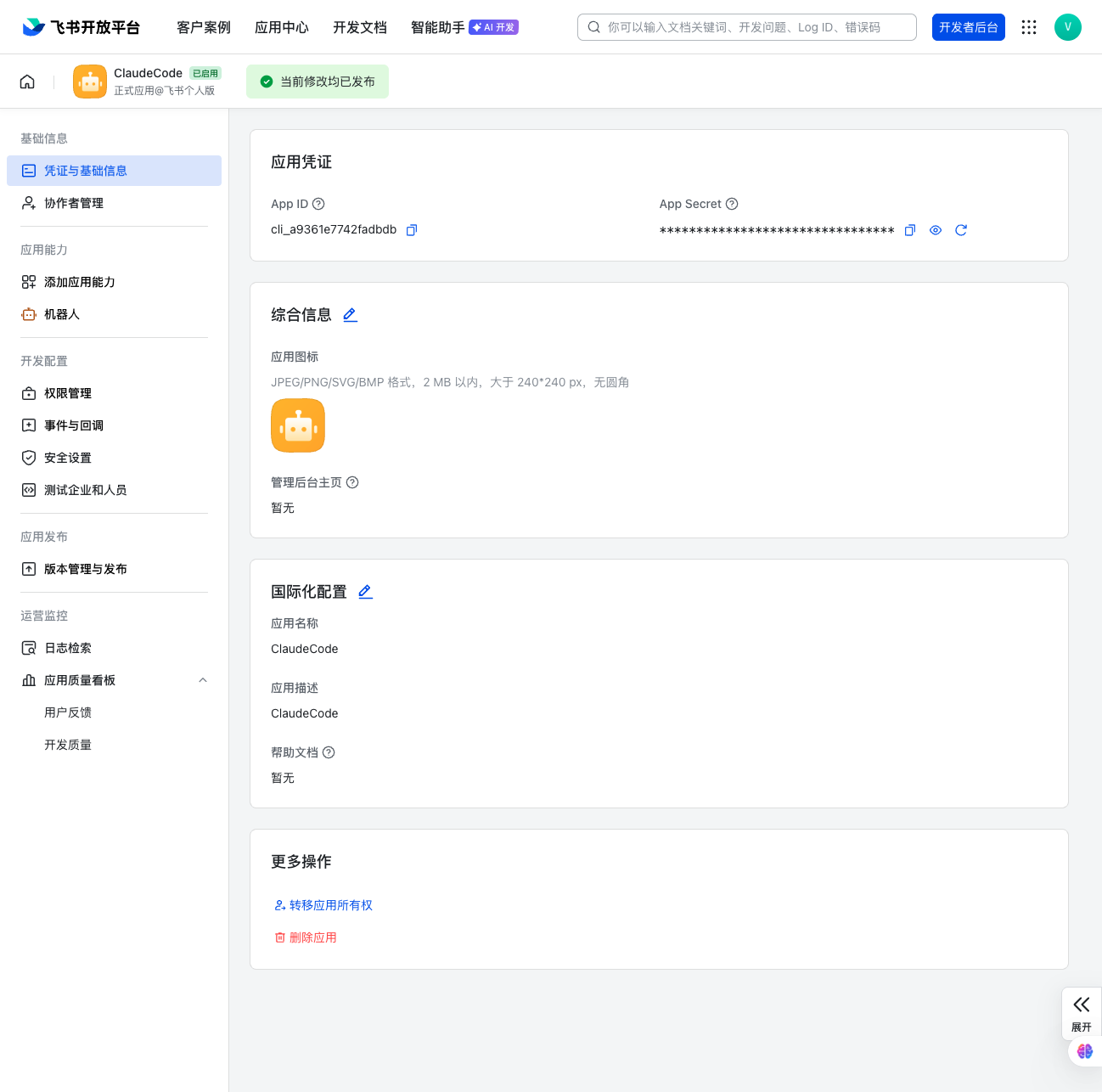
Left menu → Credentials & Basic Info (凭证与基础信息):
- Copy App ID (
cli_xxx) and App Secret — you'll need these in step 3.
1b. Add bot capability
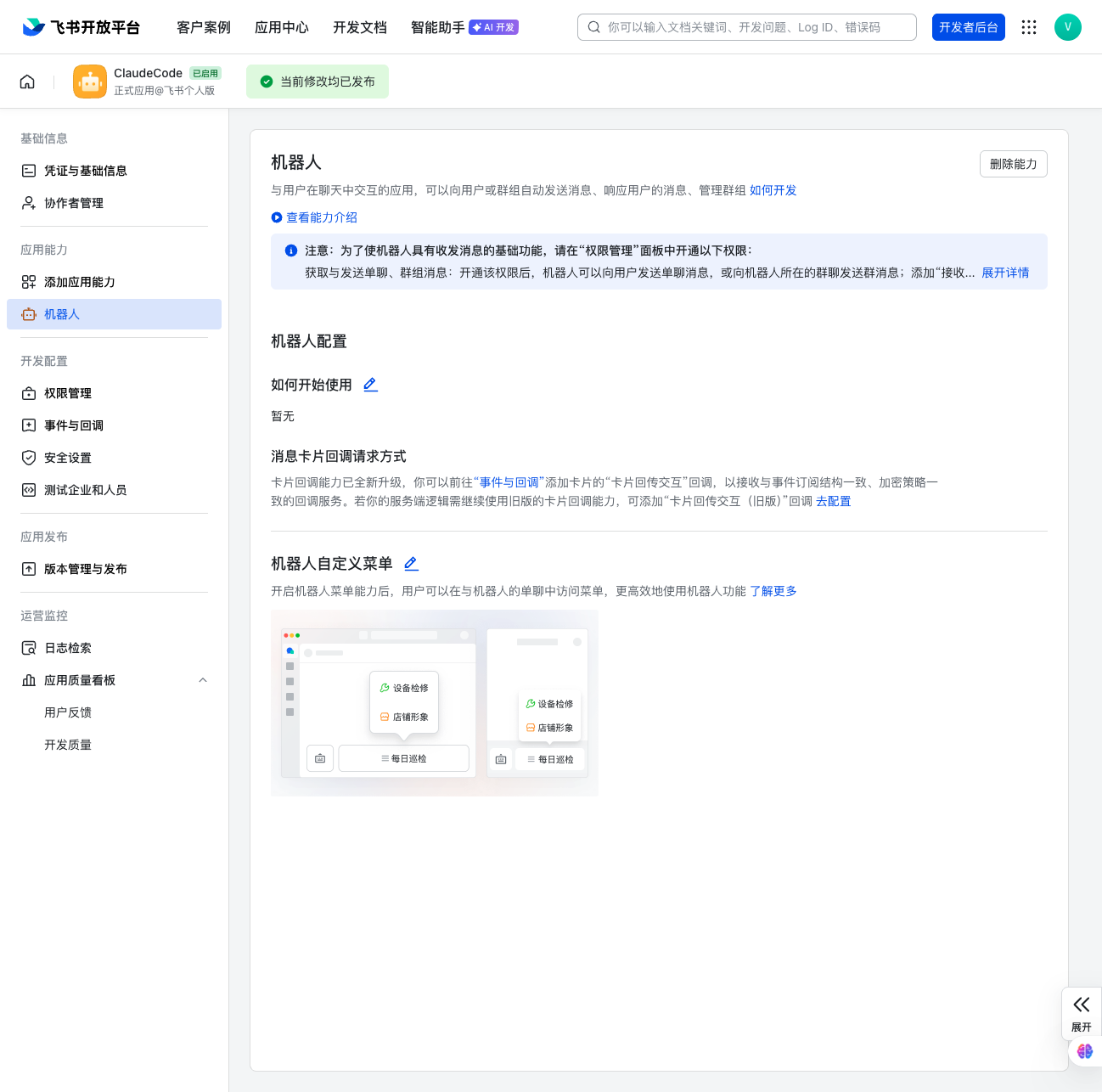
Left menu → App Features (应用能力) → Bot (机器人):
- Toggle Enable Bot on. This makes the app appear as a bot users can DM.
1c. Configure permissions
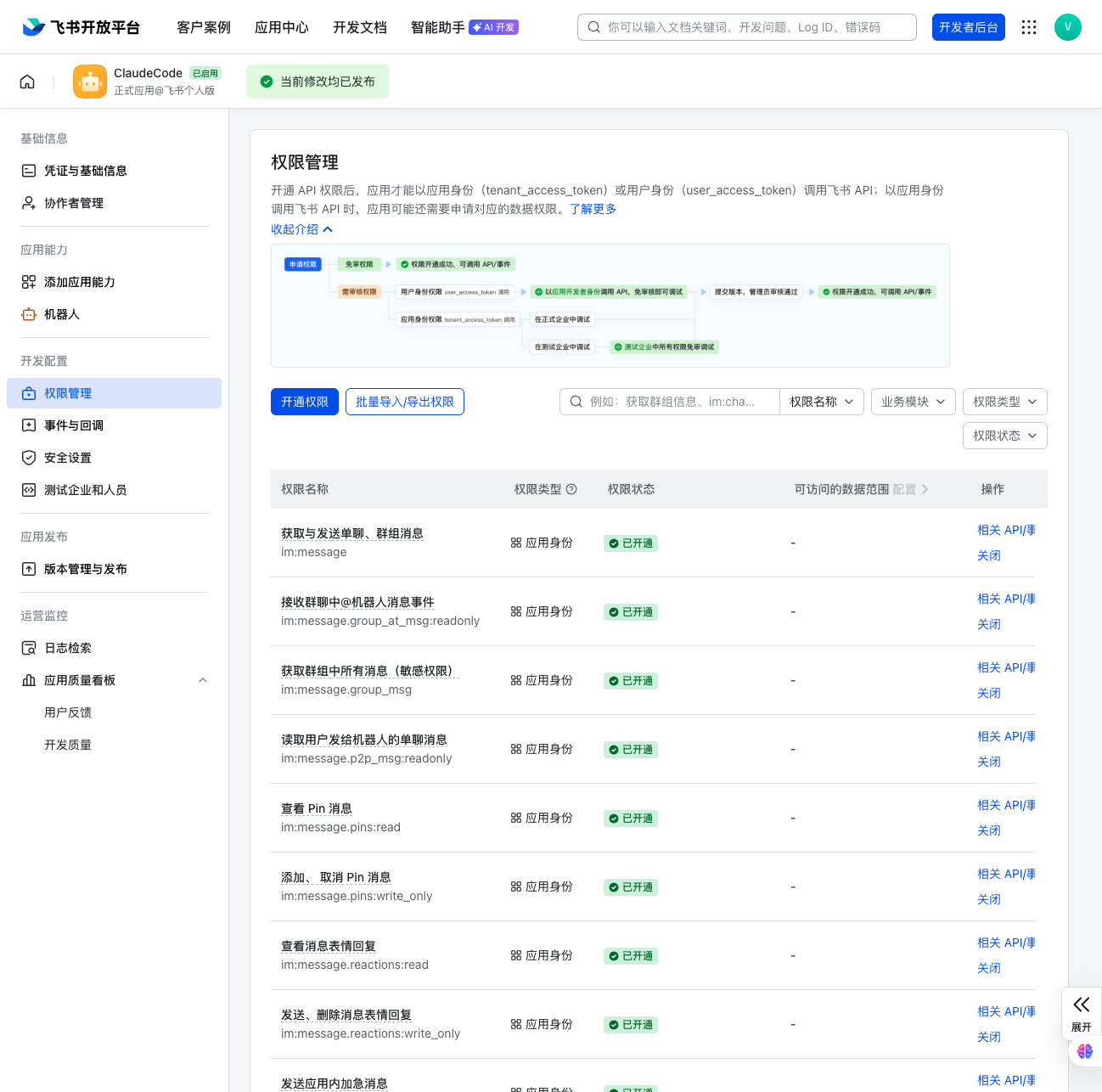
Left menu → Permissions & Scopes (权限管理) → API Permissions:
| Scope | Description | Required |
|---|
im:message | Read messages | ✅ |
im:message:send_as_bot | Send messages as bot | ✅ |
im:resource | Download images/files from messages | ✅ for photos |
im:message.reactions:write | Add emoji reactions | Optional (for ackReaction) |
im:chat:readonly | Read chat info | Optional |
Search each scope name and click Activate (开通).
1d. Configure event subscriptions ⚠️
This step is critical. If you skip it or choose the wrong subscription
method, the bot can send messages but cannot receive them.
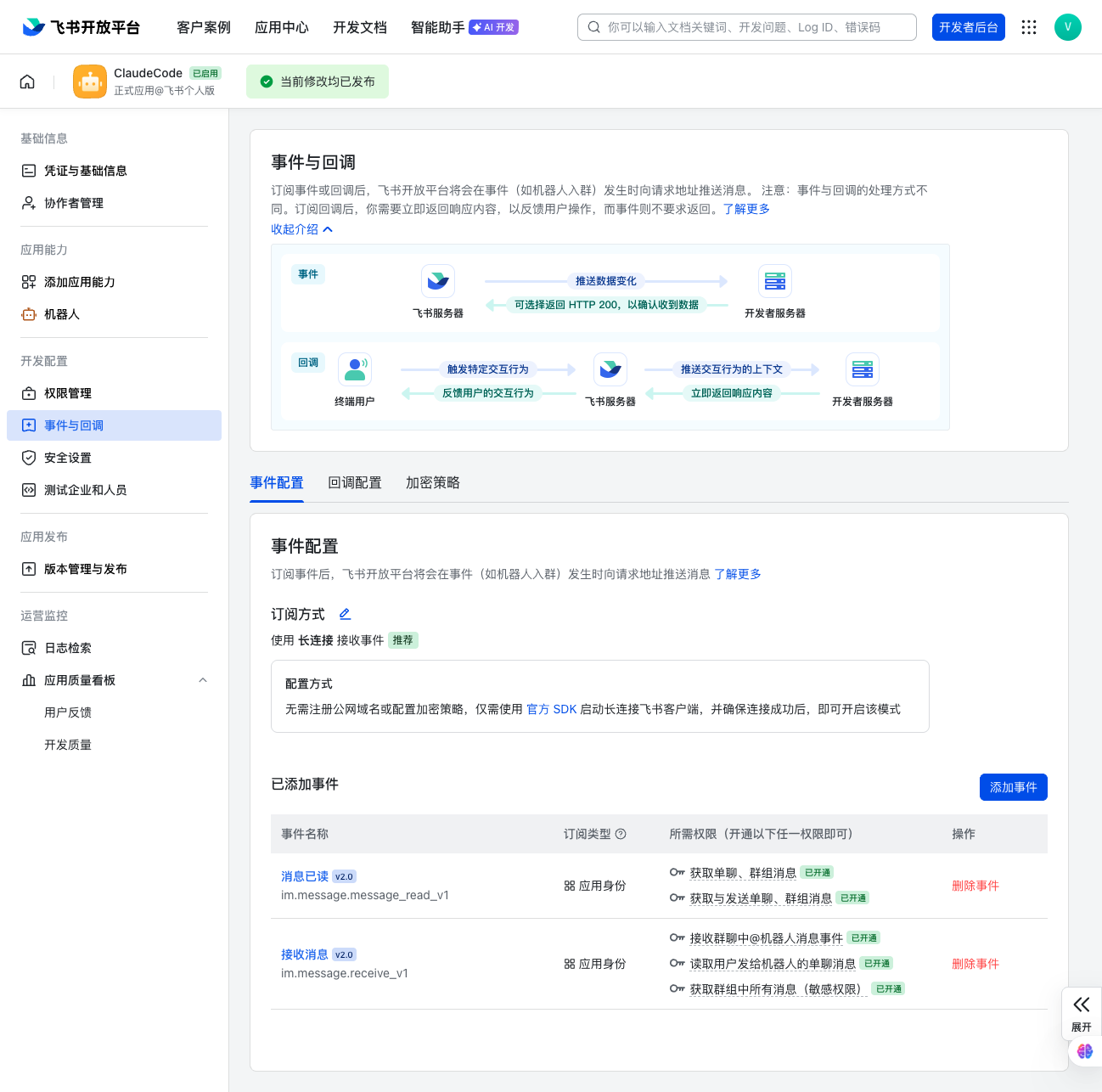
Left menu → Event Subscriptions (事件与回调):
- Subscription method (订阅方式) — select Long Connection (使用长连接
接收事件). This is the WebSocket mode, no public URL needed.
- Click Add Event (添加事件) → search
im.message.receive_v1 → add it.
The full name is "Receive Messages v2.0" (接收消息 v2.0).
1e. Publish and approve
Left menu → App Release (版本管理与发布):
- Click Create Version (创建版本) → fill in version notes → Submit
(提交发布).
- A Feishu admin in your organization needs to approve the release in the
Admin Console. For personal/test
tenants where you are the admin, it may auto-approve.
After any permission or event subscription change, you must publish a new
version for it to take effect. This is easy to forget.
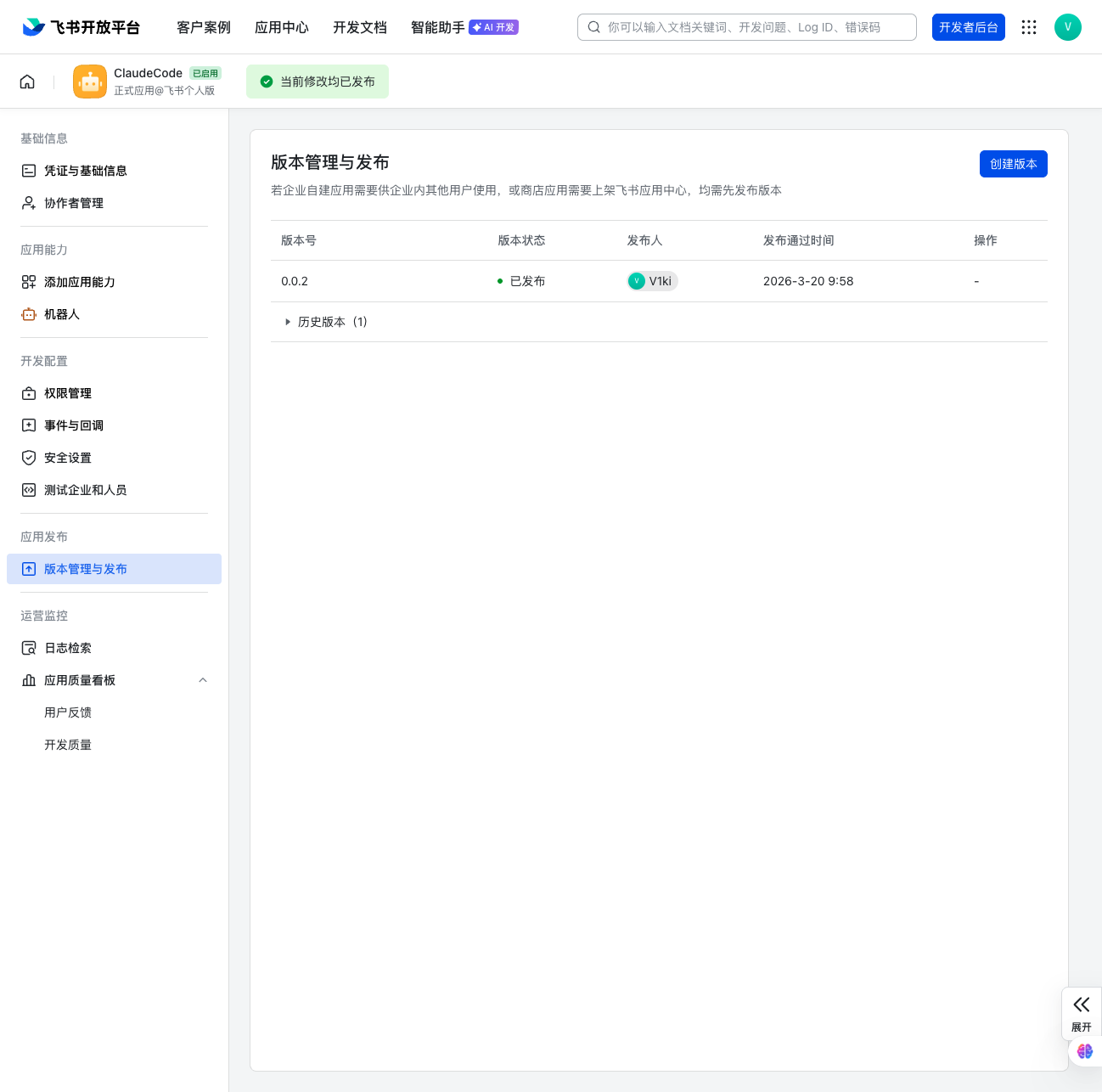
1f. Verify the bot is live
Open Feishu → search your bot name → you should see it as a contact. If not,
check that the version is published and approved.
2. Install the plugin
These are Claude Code commands — run claude to start a session first.
First, register this repository as a plugin marketplace (only needed once):
claude plugin marketplace add V1ki/claude-feishu-plugin
Then install the plugin:
claude plugin install feishu@claude-feishu-plugin
Restart your session or run /reload-plugins. Check that /feishu:configure
tab-completes.
3. Save credentials
/feishu:configure cli_xxx your_app_secret
Writes FEISHU_APP_ID=... and FEISHU_APP_SECRET=... to
~/.claude/channels/feishu/.env. You can also write that file by hand, or set
the variables in your shell environment — shell takes precedence.
4. Launch with channel flag
Exit your session and start a new one:
claude --dangerously-load-development-channels plugin:feishu@claude-feishu-plugin
Note: --channels requires the plugin to be on Claude's approved
channels allowlist, which is not yet available for third-party plugins.
Use --dangerously-load-development-channels instead — it has the same
functionality but skips the allowlist check.
5. Pair
DM your bot on Feishu — it replies with a 6-character pairing code. In your
assistant session:
/feishu:access pair <code>
Your next DM reaches the assistant.
6. Lock it down
Pairing is for capturing IDs. Once you're in, switch to allowlist so
strangers don't get pairing-code replies:
/feishu:access policy allowlist
Access control
See ACCESS.md for DM policies, groups, mention detection,
delivery config, skill commands, and the access.json schema.
Quick reference: IDs are Feishu open_ids (e.g. ou_xxx). Default policy
is pairing. ackReaction uses Feishu emoji types like THUMBSUP.
Tools exposed to the assistant

 thedotmack
 Lucklyric
 anthropics
 guanyang
'%20stop-opacity%3D'0.16'%2F%3E%3Cstop%20offset%3D'1'%20stop-color%3D'rgb(200%2C90%2C60)'%20stop-opacity%3D'0.03'%2F%3E%3C%2FlinearGradient%3E%3C%2Fdefs%3E%3Crect%20width%3D'320'%20height%3D'200'%20fill%3D'url(%23g)'%2F%3E%3Ccircle%20cx%3D'250'%20cy%3D'56'%20r%3D'92'%20fill%3D'rgb(200%2C90%2C60)'%20fill-opacity%3D'0.06'%2F%3E%3Ccircle%20cx%3D'64'%20cy%3D'172'%20r%3D'58'%20fill%3D'rgb(200%2C90%2C60)'%20fill-opacity%3D'0.05'%2F%3E%3C%2Fsvg%3E)