> People expect to enjoy rich video experiences on their devices, regardless of the app or game they’re using.
Generates Apple video player implementations following HIG guidelines for aspect ratios, transport controls, and platform-specific requirements.
/plugin marketplace add shepherdjerred/monorepo/plugin install jerred@shepherdjerredPlaying video | Apple Developer Documentation
People expect to enjoy rich video experiences on their devices, regardless of the app or game they’re using.
Source: https://developer.apple.com/design/human-interface-guidelines/playing-video
Playing video
People expect to enjoy rich video experiences on their devices, regardless of the app or game they’re using.

The system provides video players designed for you to use to embed playback experiences within your app or game in iOS, iPadOS, macOS, tvOS, and visionOS. You can also offer your content through the TV app in these platforms, which gives people a convenient and consistent viewing experience.
The system-provided video players support different aspect-ratio playback modes and in most platforms, Picture in Picture (PiP) viewing mode. Although people can switch modes during playback, by default, the system selects one of the following playback modes based on a video’s aspect ratio:
- In full-screen — or aspect-fill — mode, the video scales to fill the display, and some edge cropping may occur. This mode is the default for wide video (2:1 through 2.40:1). For developer guidance, see
resizeAspectFill. - In fit-to-screen — or aspect — mode, the entire video is visible onscreen, and letterboxing or pillarboxing occurs as needed. This mode is the default for standard video (4:3, 16:9, and anything up to 2:1) and ultrawide video (anything above 2.40:1). For developer guidance, see
resizeAspect.
In visionOS and tvOS, the built-in video player also provides transport controls, which let people perform playback tasks, like turning on subtitles or changing the audio language, and actions, like adding a show to a library or favoriting a clip. Below the transport controls, the video player displays content tabs, like Info, Episodes, or Chapters, that can provide supporting information and help streamline navigation. In visionOS, the transport controls appear as an ornament.
Best practices
Use the system video player to give people a familiar and convenient experience. The built-in video player provides an exceptional video playback experience that offers consistent interactions and behaviors that let people concentrate on enjoying immersive content. If your app truly requires a custom video player, reference the behavior and interface of the system video player to help you provide an experience that people can instantly understand. A custom experience that diverges slightly from the system-provided experience can cause frustration because people don’t know which of their habitual interactions they can continue to use.
Always display video content at its original aspect ratio. When video content uses embedded letterbox or pillarbox padding to conform to a specific aspect ratio, the system may be unable to correctly scale the video based on the current playback mode. Padding embedded within the video frame can cause videos to appear smaller in both full-screen and fit-to-screen modes. It also prevents videos from displaying correctly in edge-to-edge, non-full-screen contexts, like Picture in Picture mode on iPad.
Here are some examples that show how padding can affect video display on iPhone Xs.


4:3 video in full-screen viewing mode
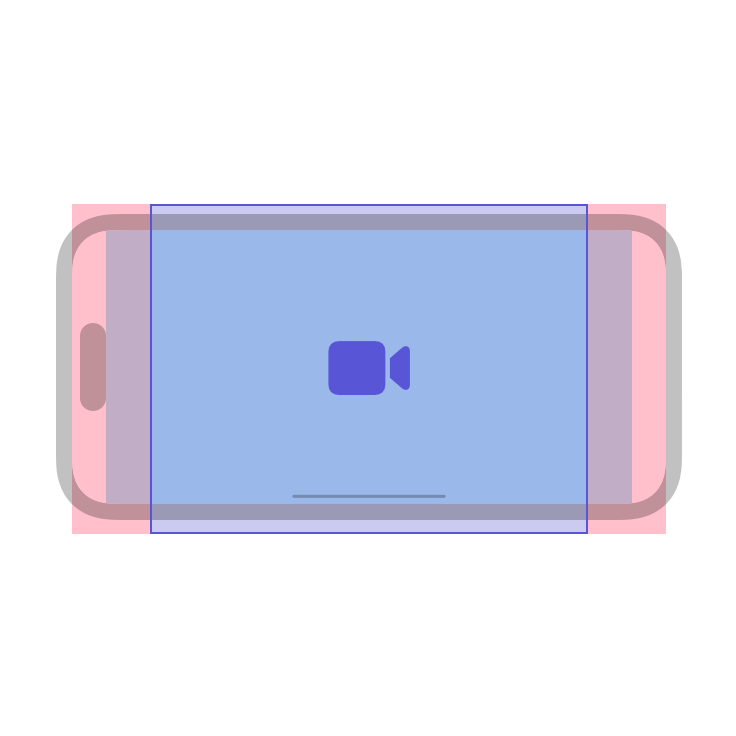

4:3 video with embedded padding, in full-screen viewing mode


21:9 video in fit-to-screen viewing mode
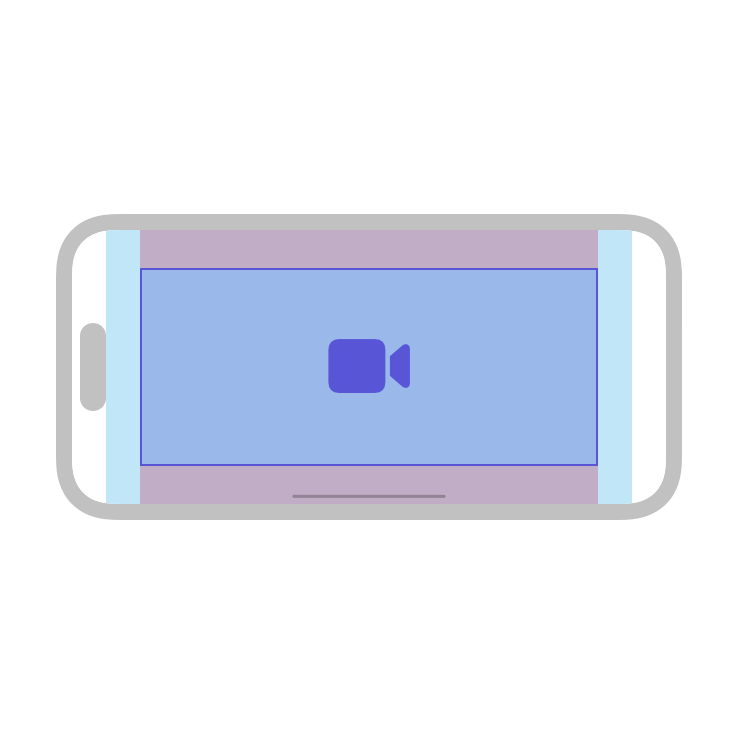
21:9 video with embedded padding, in fit-to-screen viewing mode
Provide additional information when it adds value. In iOS, iPadOS, tvOS, and visionOS, you can customize a video’s additional information by providing an image, title, description, and other useful information. In general, restrict this content so that it doesn’t obscure media playback. For developer guidance, see externalMetadata.
Support the interactions people expect, regardless of the input device they’re using to control playback. For example, people expect to press Space on a connected keyboard to play or pause media playback on Apple Vision Pro, Mac, iPhone, iPad, and Apple TV. Similarly, people expect to move through their media on Apple TV by making familiar, intuitive gestures with the Siri Remote. For guidance, see Keyboards and Remotes.
If people need to access playback options or content-specific information in your tvOS app, consider adding a transport control or a custom content tab. People typically open a transport control or content tab while they’re watching a video, so it’s essential to provide only the most useful actions and information. Help people return quickly to the viewing experience by making sure your actions don’t take more than a step or two and your content is succinct. Use a transport control to support a playback-related action like favoriting a video; use custom content tabs to display supplementary information or recommendations.
Avoid allowing audio from different sources to mix as viewers switch between modes. Mixed audio is an unpleasant and frustrating user experience. In general, audio mixes when at least one of the audio sources fails to handle secondary audio correctly. Here is a typical scenario: While watching a full-screen video, the viewer moves it into the PiP window, where the system automatically mutes the video. In the full-screen window, the viewer starts a game that plays background music, then switches to the PiP window and unmutes the video. If the game doesn’t handle secondary audio appropriately, its audio mixes with the audio from the unmuted video. For developer guidance, see silenceSecondaryAudioHintNotification.
Integrating with the TV app
The TV app provides global access to favorite, recently played, and recommended video content from across the system. When people initiate content playback within your app, the TV app automatically opens your app and transitions to it. Follow these guidelines to help the TV app experience feel like an integrated part of your app.
Ensure a smooth transition to your app. The TV app fades to black when transitioning to your app and doesn’t show your app’s launch screen. Maintain visual continuity with this transition by immediately presenting your own black screen before starting to play or resume content.
Show the expected content immediately. People expect the content they choose to begin playing as soon as the transition to your app completes, especially when resuming playback. Jump right from your app’s black screen into content, and avoid displaying splash screens, detail screens, intro animations, or any other barriers that make it take longer to reach content. In rare situations where you must display an interstitial element before the selected media plays, people can choose Select to step through the element, or choose Play if they want to skip the interstitial content and start playback.
Avoid asking people if they want to resume playback. If playback can be resumed, do so automatically without prompting for confirmation.
Play or pause playback when people press Space on a connected Bluetooth keyboard. Pressing Space to control media playback is an interaction people expect, regardless of the keyboard they’re using.
Make sure content plays for the correct viewer. If your app supports multiple user profiles, the TV app can specify a profile when issuing a playback request. Make your app automatically switch to this profile before starting playback. If a playback request doesn’t specify a profile, ask the viewer to choose one before playback begins so this information is available in the future.
Use the previous end time when resuming playback of a long video clip. Resuming playback at the previous stopping point lets people quickly continue where they left off.
Loading content
Avoid displaying loading screens when possible. A loading screen is unnecessary if your content loads quickly, but if loading takes more than two seconds, consider showing a black loading screen with a centered activity spinner and no surrounding content.
Start playback immediately. If you must display a loading screen, display it only until enough content loads for playback to begin. Continue loading remaining content in the background.
Minimize loading screen content. If you include branding or images on your loading screen, do so minimally while maintaining the black background that helps provide a seamless transition to playback.
Exiting playback
After exiting playback, people remain in your app rather than returning to the TV app, so it’s a good idea to help them avoid becoming disoriented.
Show a contextually relevant screen. When exiting playback, display a detail view for the content the viewer was just watching and include an option to resume playback. If a detail view isn’t available, show either a menu that lists this content or your app’s main menu.
Be prepared for an immediate exit. Prepare an exit view as soon as possible after receiving a playback notification so you’re ready to display the view if people exit immediately after playback begins.
Platform considerations
No additional considerations for iOS, iPadOS, or macOS.
tvOS
Defer to content when displaying logos or noninteractive overlays above video. A small, unobtrusive logo or countdown timer may be appropriate for your video, but avoid large, distracting overlays that don’t enhance the viewing experience. Also, be aware that some devices are prone to image retention, so it’s generally better to keep overlays short and to prefer translucent graphics in Standard Dynamic Range (SDR) to bright, opaque content.
Show interactive overlays gracefully. Some videos display interactive overlays, such as quizzes, surveys, and progress check-ins. For the best user experience, implement a minimum delay of 0.5 seconds to pause playing media, and display an interactive overlay. Give people a clear way to dismiss the overlay and resume media playback after they finish interacting.
visionOS
Help people stay comfortable when playing video in your app. Often, an app doesn’t control the content in the videos it plays, but you can help people stay comfortable by:
- Letting them choose when to start playing a video
- Using a small window for playback, letting people resize it if they want
- Making sure people can see their surroundings during playback
In a fully immersive experience, avoid letting virtual content obscure playback or transport controls. In a fully immersive context, the system automatically places the video player at a predictable location that provides an optimal viewing experience. Use this location to help make sure that no virtual content occludes the default playback or transport controls in the ornament near the bottom of the player.
Avoid automatically starting a fully immersive video playback experience. People need control over their experience and they’re unlikely to appreciate being launched into a fully immersive video without warning.
Create a thumbnail track if you want to support scrubbing. The system displays thumbnails as people scrub to different times in the video, helping them choose the section they want. To improve performance, supply a set of thumbnails that each measure 160 px in width. For developer guidance, see HTTP Live Streaming (HLS) Authoring Specification for Apple Devices > Trick Play.
Avoid expanding an inline video player to fill a window. When you display the system-provided player view in a window, playback controls appear in the same plane as the player view and not in an ornament that floats above the window. Inline video needs to be 2D and you want to make sure that window content remains visible around the player so people don’t expect a more immersive playback experience. For developer guidance, see AVPlayerViewController.
Use a RealityKit video player if you need to play video in a view like a splash screen or a transitional view. In situations like these, people generally expect the video to lead into the next experience, so they don’t need playback controls or system-provided integration, like dimming and view anchoring. The RealityKit video player automatically uses the correct aspect ratio for both 2D and 3D video and supports closed captions. RealityKit can also help you play video as a special effect on the surface of a custom view or object. For developer guidance, see RealityKit.
watchOS
In watchOS, the system manages video playback. Apps can play short video clips while the app is active and running in the foreground. You can use a movie element to embed clips in your interface and play video inline, or you can play a clip in a separate interface. For developer guidance, see VideoPlayer.
Keep video clips short. Prefer shorter clips of no longer than 30 seconds. Long clips consume more disk space and require people to keep their wrists raised for longer periods of time, which can cause fatigue.
Use the recommended sizes and encoding values for media assets. In particular, avoid scaling video clips, which affects performance and results in a suboptimal appearance. The following table lists the recommended encoding and resolution values for video assets. The audio encoding values apply to both movies and audio-only assets.
| Attribute | Value |
|---|---|
| Video codec | H.264 High Profile |
| Video bit rate | 160 kbps at up to 30 fps |
| Resolution (full screen) | 208x260 px (portrait orientation) |
| Resolution (16:9) | 320x180 px (landscape orientation) |
| Audio | 64 kbps HE-AAC |
Avoid creating a poster image that looks like a system control. You want people to understand that they can tap a movie element for playback; you don’t want to confuse people by making movie elements look like something else.
Consider creating a poster image that represents a video clip’s contents. When people tap a poster image, the system replaces the image with the video and begins inline playback. A relevant poster image can help people make an informed decision about whether to view the video. In general, avoid creating a poster image that has nothing to do with the content or that people might mistake for a control.
Resources
Related
Developer documentation
Configuring your app for media playback — AVFoundation
Videos
[
Create a great video playback experience](https://developer.apple.com/videos/play/wwdc2022/10147)
[
Explore video experiences for visionOS](https://developer.apple.com/videos/play/wwdc2025/304)
[
Deliver a great playback experience on tvOS](https://developer.apple.com/videos/play/wwdc2021/10191)
Change log
| Date | Changes |
|---|---|
| September 12, 2023 | Corrected the recommended width for a thumbnail in visionOS. |
| June 21, 2023 | Updated to include guidance for visionOS. |
Similar Agents
Use this agent to verify that a Python Agent SDK application is properly configured, follows SDK best practices and documentation recommendations, and is ready for deployment or testing. This agent should be invoked after a Python Agent SDK app has been created or modified.
Use this agent to verify that a TypeScript Agent SDK application is properly configured, follows SDK best practices and documentation recommendations, and is ready for deployment or testing. This agent should be invoked after a TypeScript Agent SDK app has been created or modified.
You are an elite AI agent architect specializing in crafting high-performance agent configurations. Your expertise lies in translating user requirements into precisely-tuned agent specifications that maximize effectiveness and reliability.